> ## Documentation Index
> Fetch the complete documentation index at: https://docs.lollipop.network/llms.txt
> Use this file to discover all available pages before exploring further.
# Wallet
## Connect MetaMask Wallet
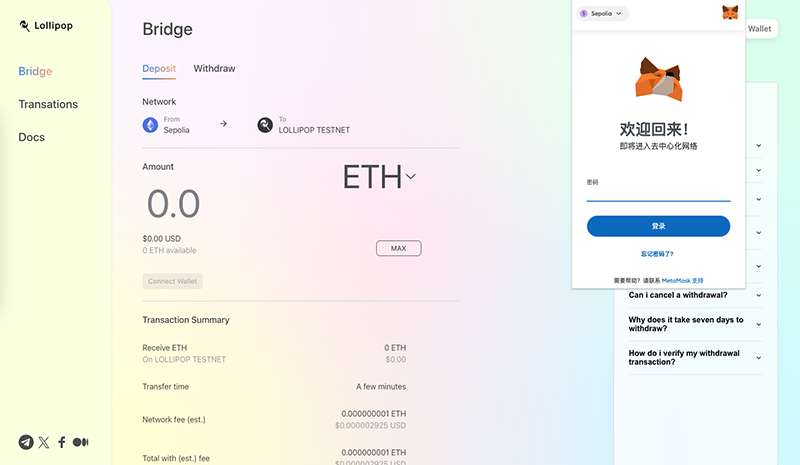
1. First and foremost, it’s important to be connected to your blockchain wallet. Lollipop Bridge supports only MetaMask as the wallet at the moment.
2. Click connect wallet on the top right and enter your password to login.
 ## Network Setting
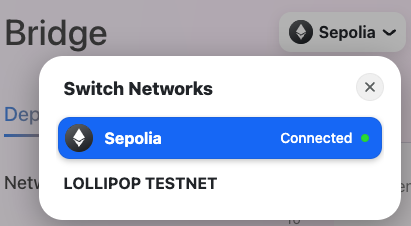
To use testnet, change your network to Sepolia or Lollipop Testnet using the MetaMask UI. To switch back to mainnet, change your network to Ethereum or Lollipop using the same UI.
* You can change the network by clicking the network logo on the top right corner.
## Bridge History
The bridge history displays a list of deposit transactions (Ethereum → Lollipop) and withdrawal transactions (Lollipop → Ethereum).
To learn more about "Withdraw," please visit this [page](https://docs.lollipop.network/service-guide/lollipop-bridge/bridge/withdraw).
* To access the bridge history, click on the wallet address button located at the top right corner of the screen.
## Network Setting
To use testnet, change your network to Sepolia or Lollipop Testnet using the MetaMask UI. To switch back to mainnet, change your network to Ethereum or Lollipop using the same UI.
* You can change the network by clicking the network logo on the top right corner.
## Bridge History
The bridge history displays a list of deposit transactions (Ethereum → Lollipop) and withdrawal transactions (Lollipop → Ethereum).
To learn more about "Withdraw," please visit this [page](https://docs.lollipop.network/service-guide/lollipop-bridge/bridge/withdraw).
* To access the bridge history, click on the wallet address button located at the top right corner of the screen.