> ## Documentation Index
> Fetch the complete documentation index at: https://docs.lollipop.network/llms.txt
> Use this file to discover all available pages before exploring further.
# Add Lollipop on Metamask
> This section will guide you through the step-by-step process of installing the MetaMask wallet in your Chrome browser. Additionally, we will delve into the procedure for adding the Lollipop network to the MetaMask wallet.
### How to Install MetaMask in Chrome
1. Open the Chrome browser and Login to Google ([https://www.google.com/](https://www.google.com/))
2. After login, click the button at the top right as shown in the screenshot
3. Click on Extensions
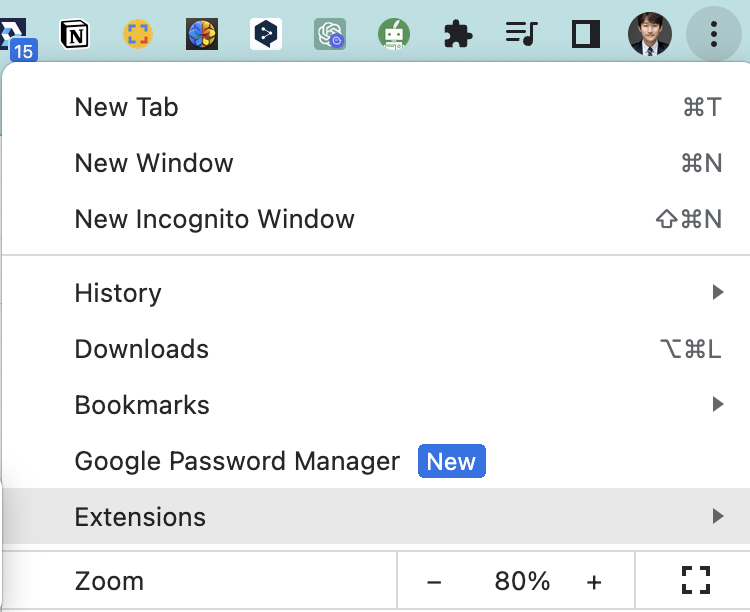 1. Click Visit Chrome Web Store
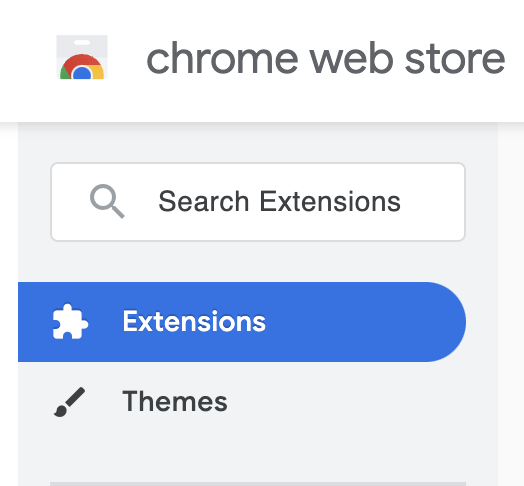 * The Chrome Web Store window will open once you have followed the earlier instructions. Like in the screenshot above, you will notice a search bar in the Chrome Web Store's top left corner. Click on the search bar and enter "MetaMask" to initiate a search for the extension.
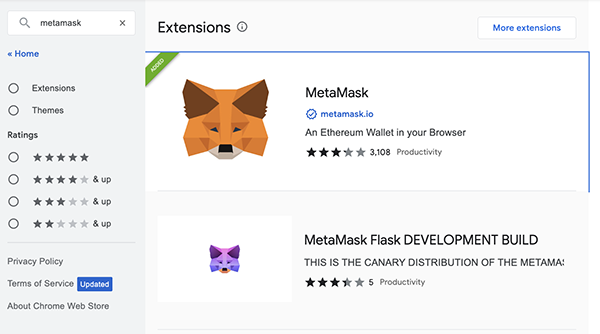 * When you search for MetaMask, you will see a screen resembling the one above. From there, click on the MetaMask extension to proceed.
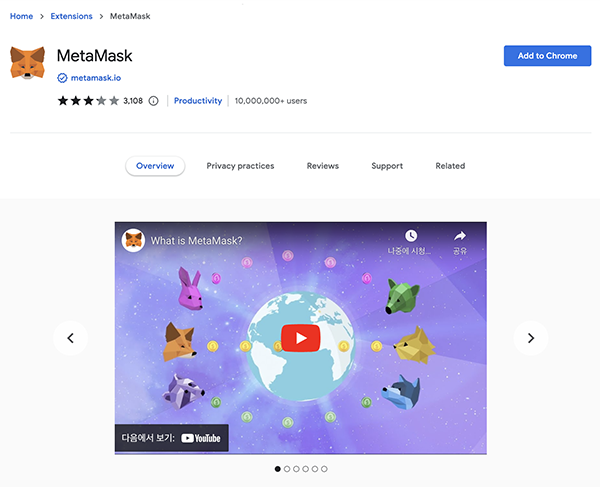 * If you click MetaMask, the above screen will appear. Click 'Add to Chrome' here.
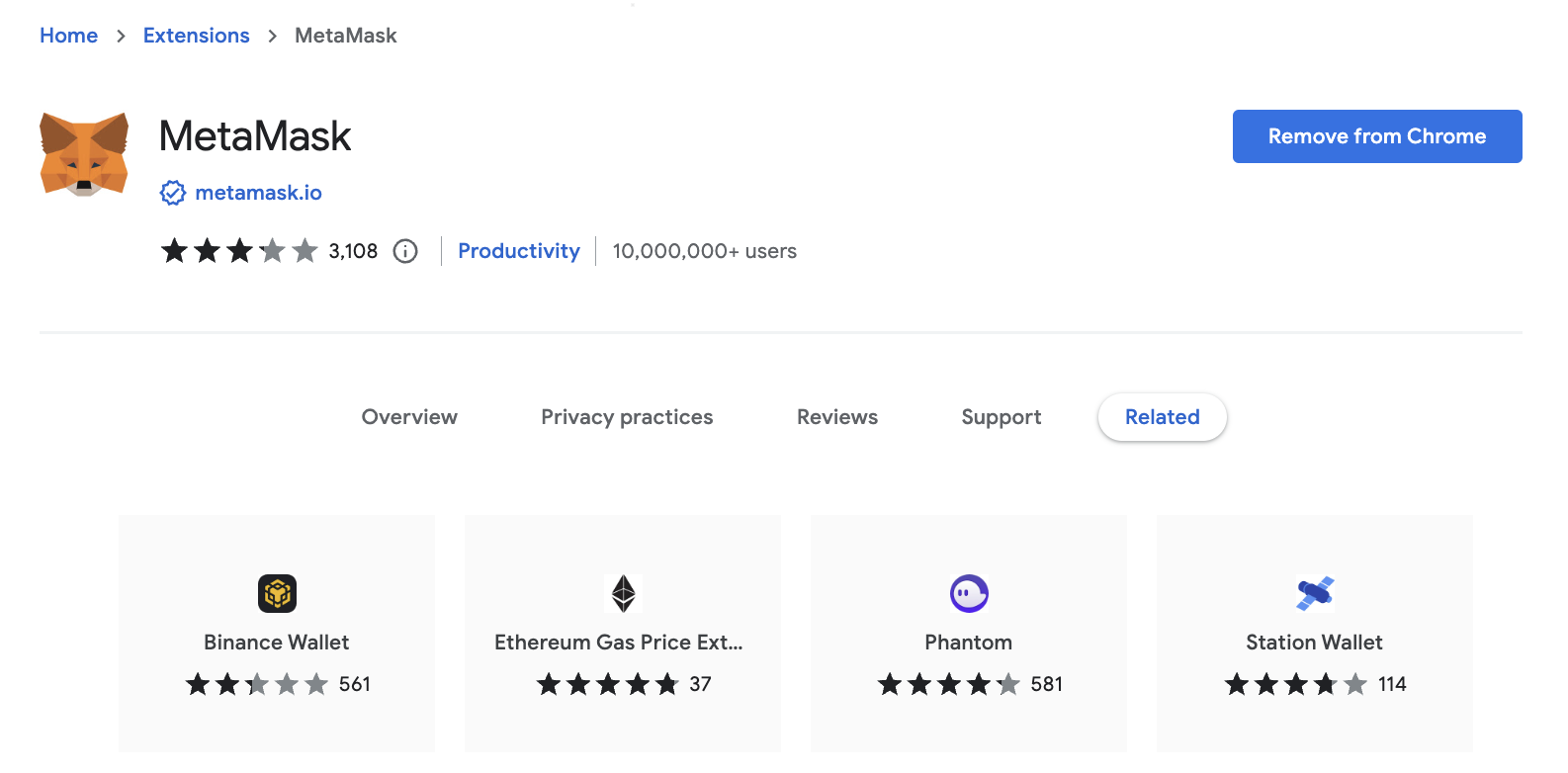 * If MetaMask is properly installed, you can see that the Add to Chrome button has been changed to Remove from Chrome, as shown above.
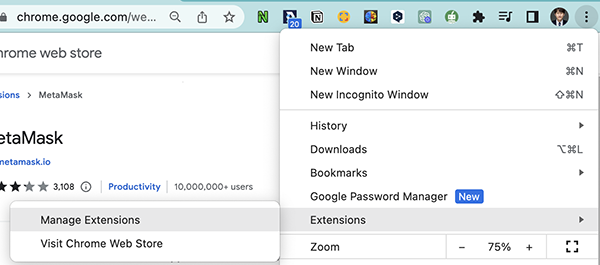 1. After installing MetaMask, click the button on the top right, as shown in the screenshot
2. Click Extensions
3. Click Manage Extensions
1. After installing MetaMask, click the button on the top right, as shown in the screenshot
2. Click Extensions
3. Click Manage Extensions
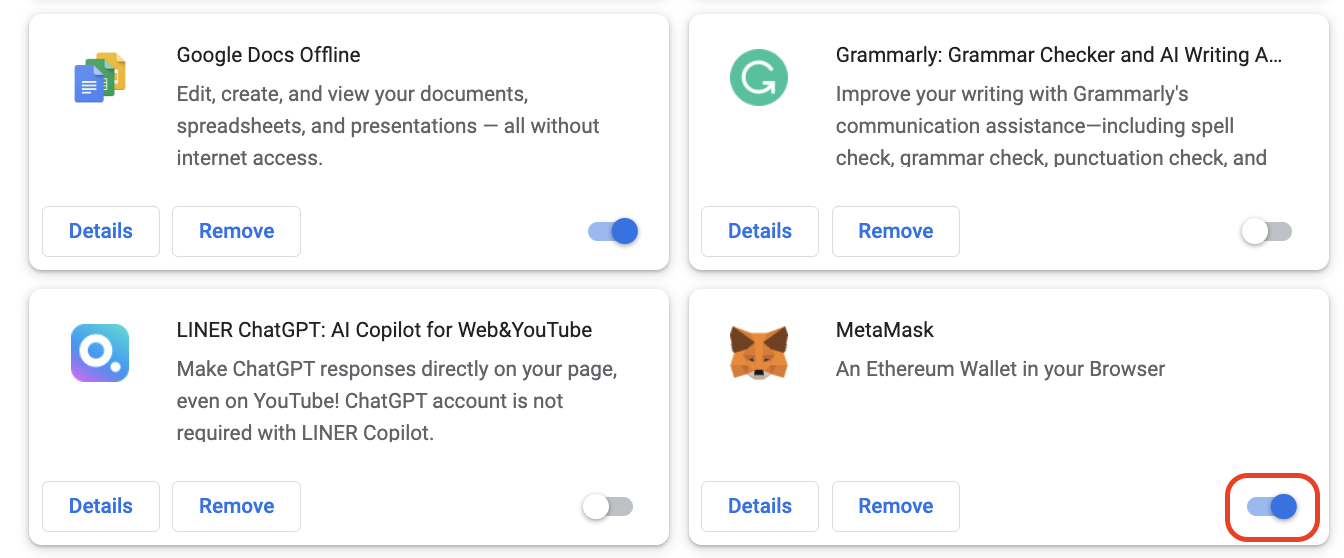 * The extension management window appears as in the following screenshot, and if the MetaMask side is marked with a red box, the installation is complete.
### How to Add Lollipop Network in MetaMask (Method 1)
* The extension management window appears as in the following screenshot, and if the MetaMask side is marked with a red box, the installation is complete.
### How to Add Lollipop Network in MetaMask (Method 1)
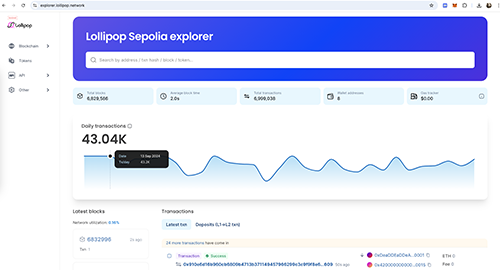 * If you access [https://explorer.lollipop.network](https://explorer.lollipop.network/), following screen will appear. Scroll down the screen.
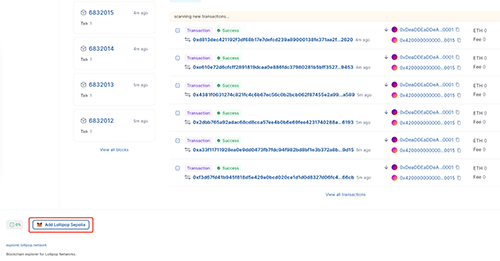 * If you scroll down, there is a MetaMask icon and Add Lollipop Mainnet like a red box at the bottom, click the red box.
* When clicked, a Metamask pop-up opens as shown screenshot. Scroll down here.
* If you scroll down, you will see the Approve button as follows, press the Approve button.
* After pressing the Approve button, the following screen will appear. Click the Switch Network button on the screen.
* If you click the switch network button, you can see that the Lollipop Mainnet network has been added as follows.
### How to Add Lollipop Network in MetaMask (Method 2)
* Click on the Metamask icon you installed earlier. After that, click the Ethereum Mainnet button.
* If you scroll down, there is a MetaMask icon and Add Lollipop Mainnet like a red box at the bottom, click the red box.
* When clicked, a Metamask pop-up opens as shown screenshot. Scroll down here.
* If you scroll down, you will see the Approve button as follows, press the Approve button.
* After pressing the Approve button, the following screen will appear. Click the Switch Network button on the screen.
* If you click the switch network button, you can see that the Lollipop Mainnet network has been added as follows.
### How to Add Lollipop Network in MetaMask (Method 2)
* Click on the Metamask icon you installed earlier. After that, click the Ethereum Mainnet button.
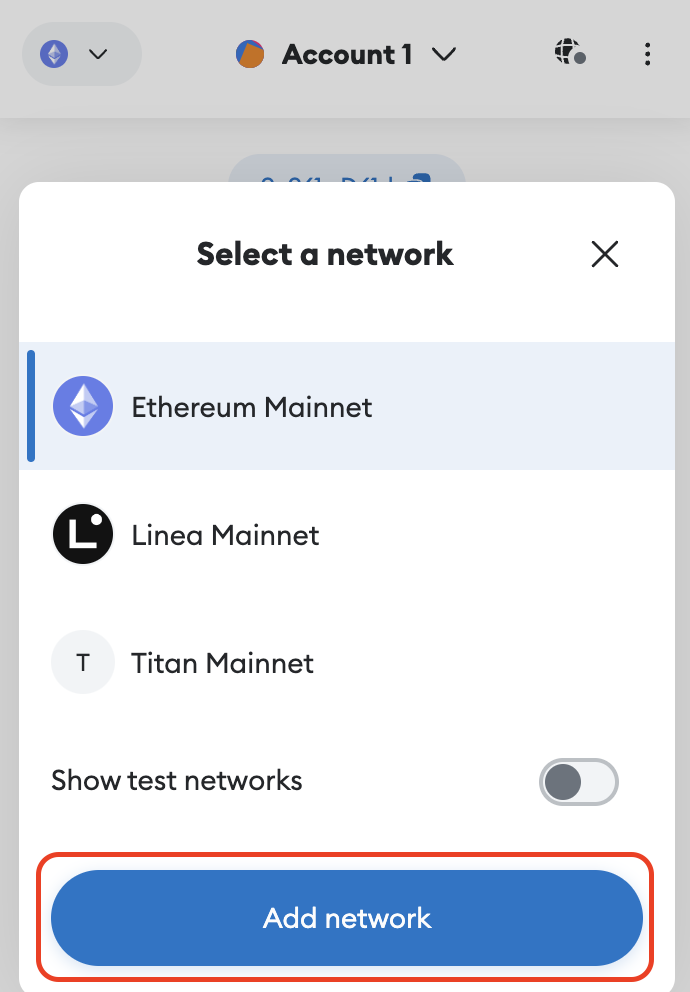 If you click Ethereum Mainnet, the above screen will appear. Click the Add Network button.
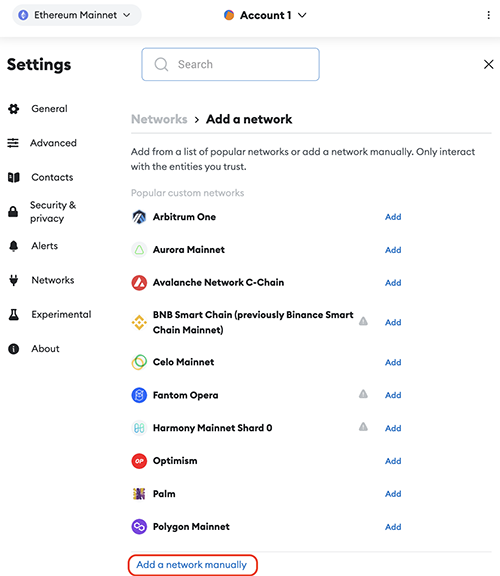 When you click the Add Network button, the following screen appears. On the next screen, click Add Network Manually.
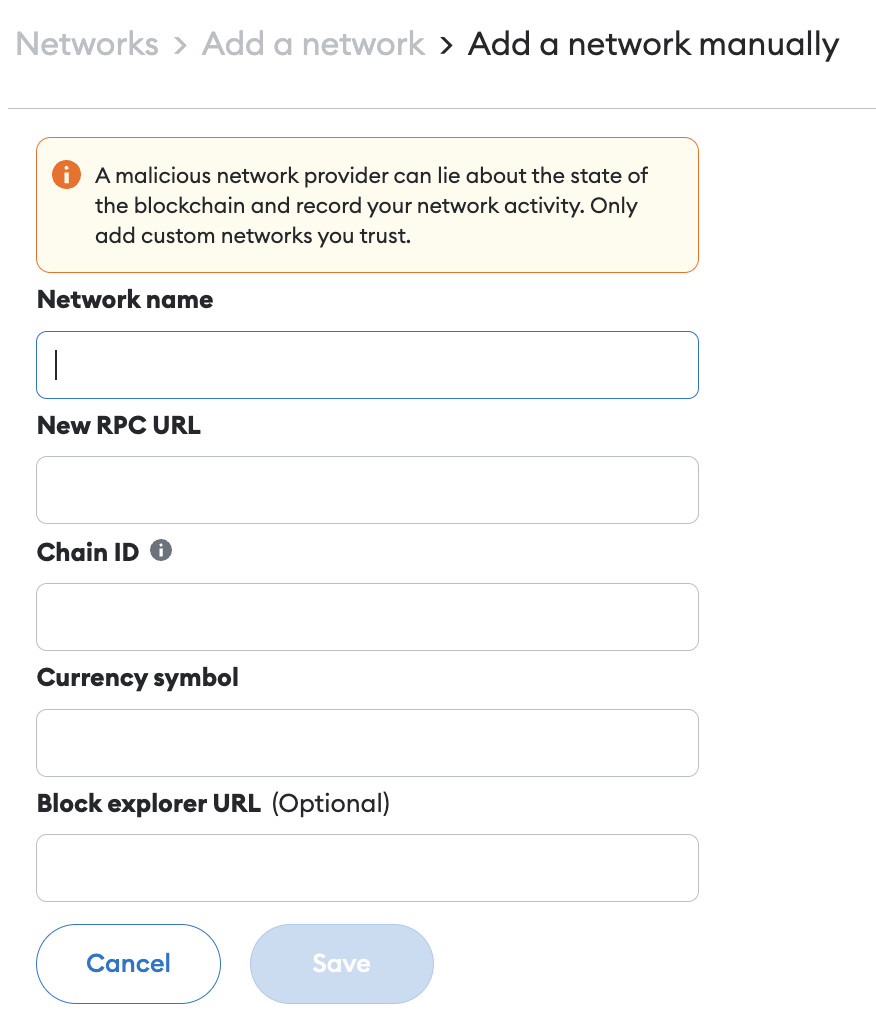 * Once you click Add Network Manually, the following screen will appear.
1. Network name : Lollipop Sepolia
2. New RPC URL :[https://rpc-testnet.lollipop.network](https://rpc-testnet.lollipop.network)
3. Chain ID : 78658
4. Currency symbol : ETH
5. Block explorer URL (Optional) :[ https://explorer.lollipop.network](https://explorer.lollipop.network)
* Fill in the fields with the above data.
* Click the save button.
* After saving, you can see that the Lollipop network gets added, as shown above.
* Once you click Add Network Manually, the following screen will appear.
1. Network name : Lollipop Sepolia
2. New RPC URL :[https://rpc-testnet.lollipop.network](https://rpc-testnet.lollipop.network)
3. Chain ID : 78658
4. Currency symbol : ETH
5. Block explorer URL (Optional) :[ https://explorer.lollipop.network](https://explorer.lollipop.network)
* Fill in the fields with the above data.
* Click the save button.
* After saving, you can see that the Lollipop network gets added, as shown above.